🪵 Materials
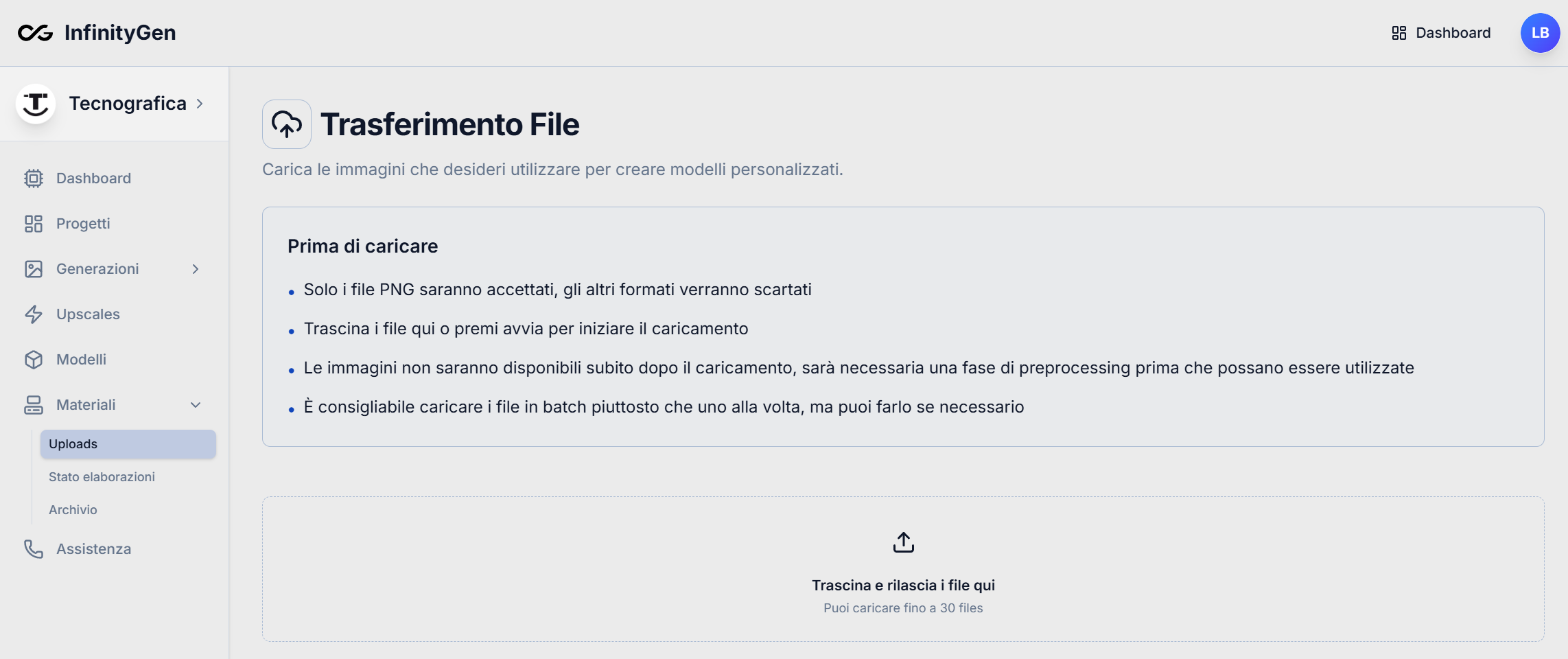
The Materials section of InfinityGen allows you to upload images you want to use for creating custom models. Here you can easily manage your files and monitor the processing status.
Uploads
Before uploading:
- PNG files only: Only PNG files are accepted; all other formats will be discarded.
- Drag & Drop: You can drag and drop files directly into the dedicated area or press "Start" to begin uploading.
- Preprocessing required: Images will not be available immediately after uploading; a preprocessing phase is required before they can be used.
- Batch upload recommended: It is preferable to upload files in batches (up to 30 at a time) rather than one by one, but you can also upload them individually if needed.
How it works
- Drag and drop PNG files into the indicated area or select them manually.
- Wait for the upload and preprocessing phases to complete.
- Once ready, the images will be available for creating new models.
For Tecnografica Iberica operators, it is required to add the initials TI to the material names, for example 'ACQUAMARINA-78527-TI'.
Processing Status
This section, accessible from the side menu, allows operators to monitor the progress of the processing of uploaded images to be used within customizations.
Materials Archive
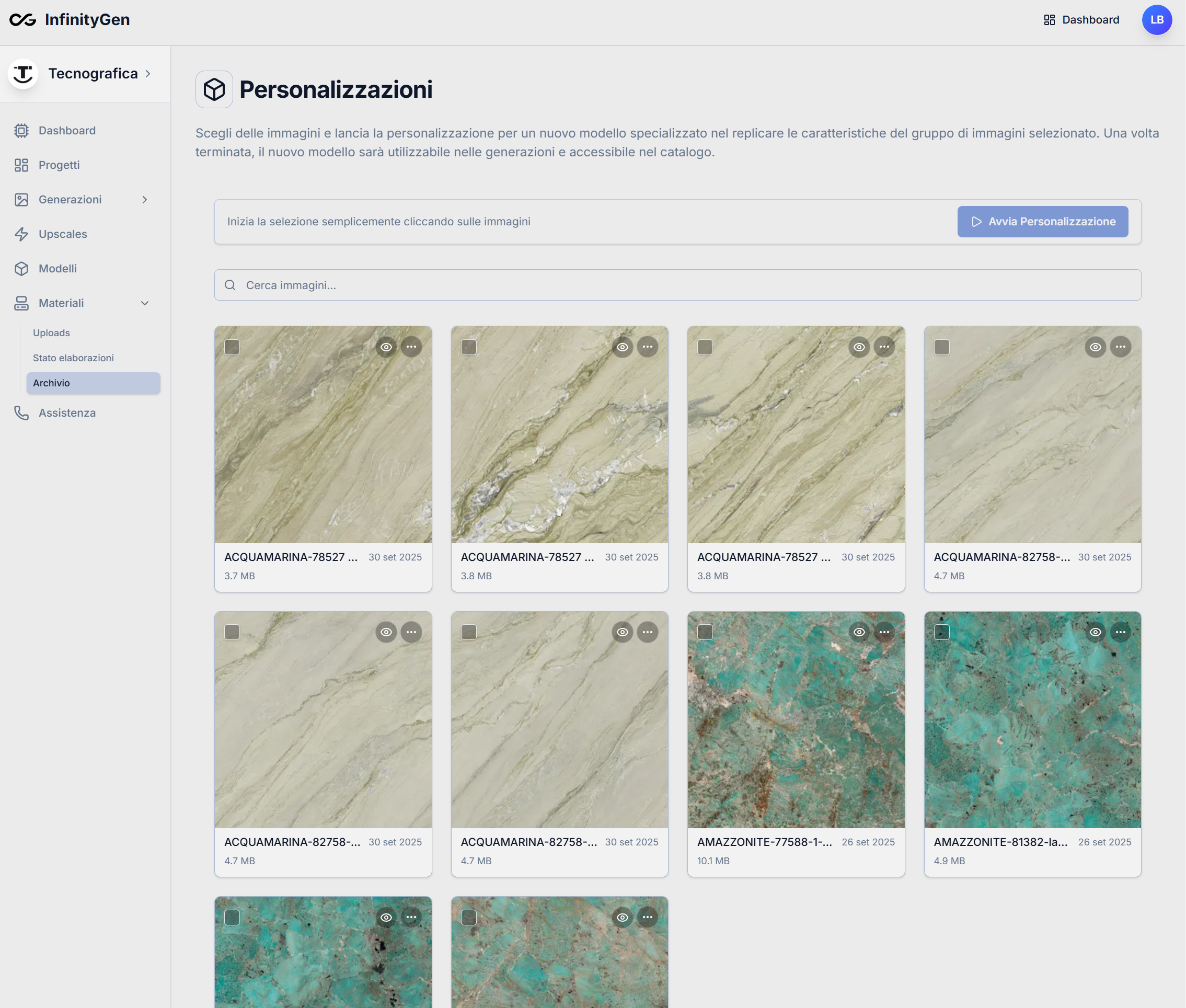
The Archive section of Materials allows you to view, manage, and select all uploaded images that can be used to create custom models.
Main Features
- Image preview: Each image is shown as a card with a preview, file name, size, and upload date.
- Multi-selection: You can select one or more images simply by clicking on the previews.
- Quick search: Use the search bar to quickly find images by name.
- Start customization: After selecting the desired images, you can start creating a new custom model using the dedicated button.
- Image management: Through the contextual menu on each card, you can access additional actions (such as viewing details, deleting, etc.).
How it works
- Browse the archive to view all available images.
- Select the images you want to use by clicking on the previews.
- Press the Start Customization button to begin creating a new model based on the selected images.
For Tecnografica Iberica operators, it is required to add the initials TI to the model names, for example 'ACQUAMARINA-TI'.