🗃️ Accounting
The Accounting page is accessible to authorized users and allows you to manage the revenue share owed to InfinityGen for sold images.
This section displays a list of accounting records issued to InfinityGen, which can be filtered by period and name. For each accounting record, you can open the detail page or proceed with deletion. Deletion is not permitted if the item is already linked to one or more existing upscales. In this case, it is recommended to contact technical support for removal.
A banner above the list displays a notice regarding the number of images not yet accounted for.

Details
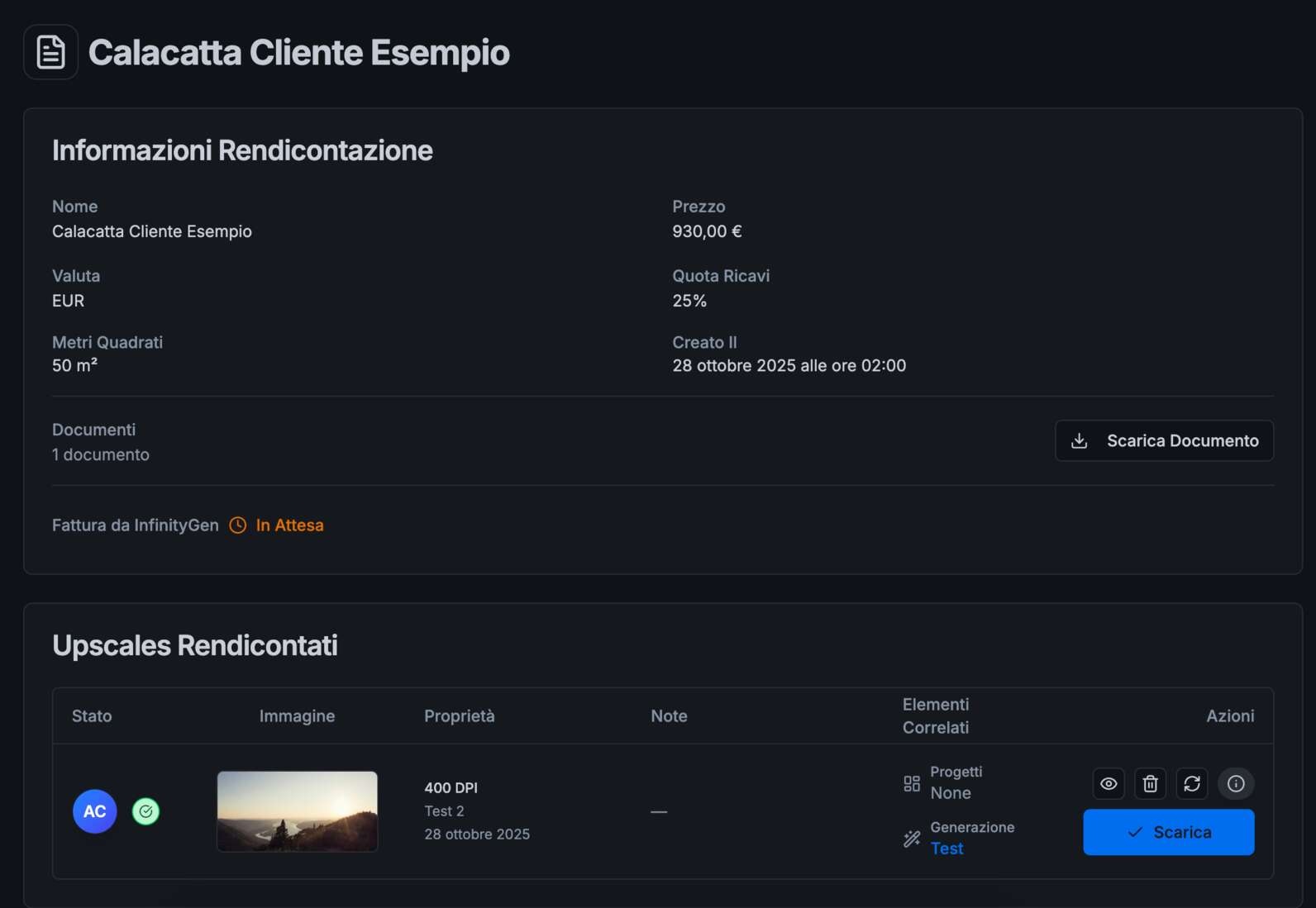
On the accounting record detail page, you can:
- view the data entered during creation;
- download the uploaded document;
- view the list of images included in the accounting record;
- download the images and view the original generation, which includes the low-resolution versions generated through InfinityGen.
- As soon as available, download the invoice issued by InfinityGen for the received payment
Creating an Accounting Record
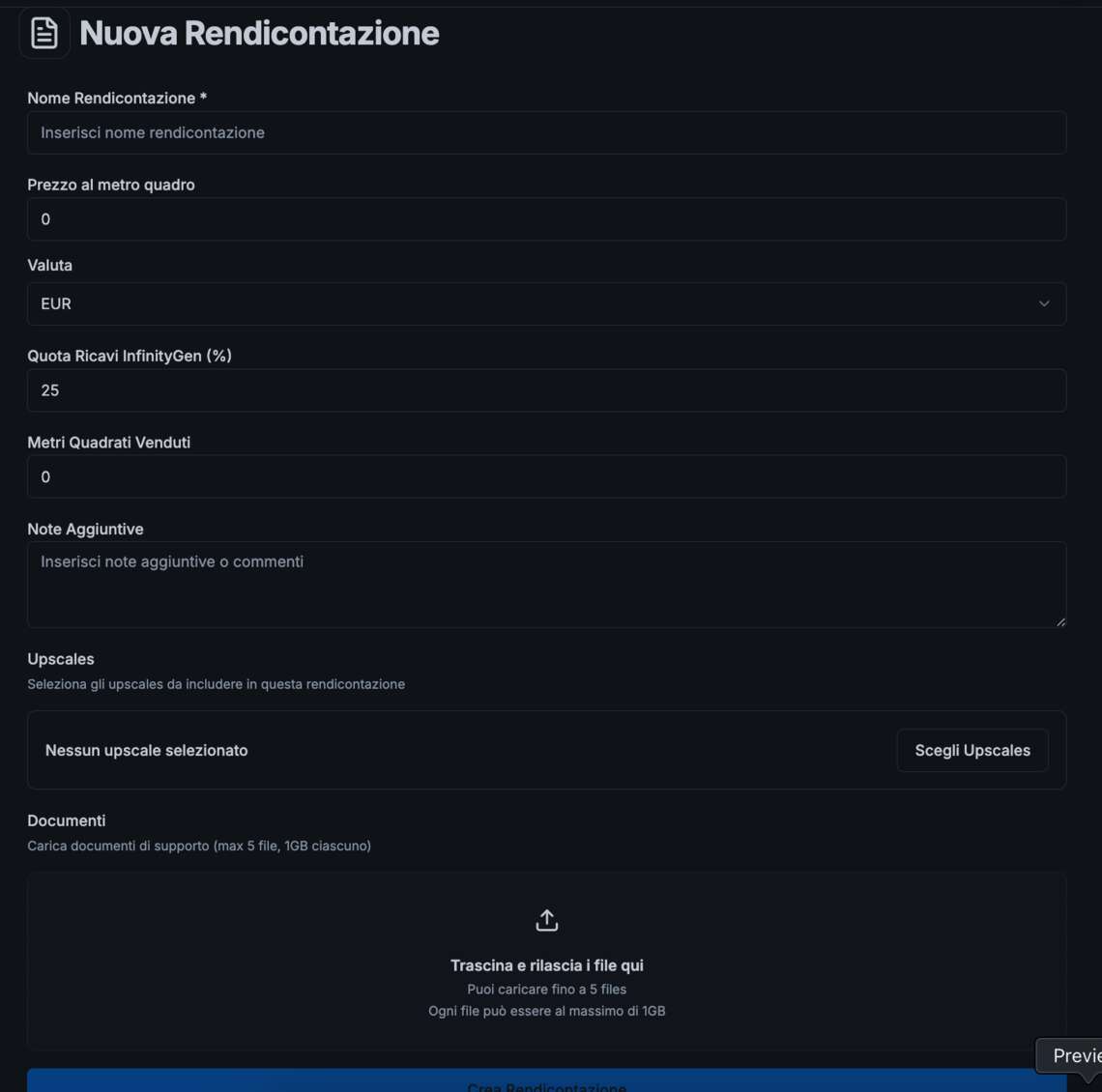
To create a new accounting record, simply click the New Accounting Record button on the main page. A form will open where you can enter the required information, upload the document, and save.
Available Fields
- Name – a freely assignable identifier, useful for recognizing and easily searching for the accounting record on the main page
- Price per square meter – the sale price of the image per square meter
- Currency – the currency used for payment to InfinityGen
- InfinityGen revenue share – the percentage of revenue share owed to InfinityGen (pre-filled by default according to the contractual agreement)
- Additional notes – a free field for any comments or supplementary information
Upscale Selection
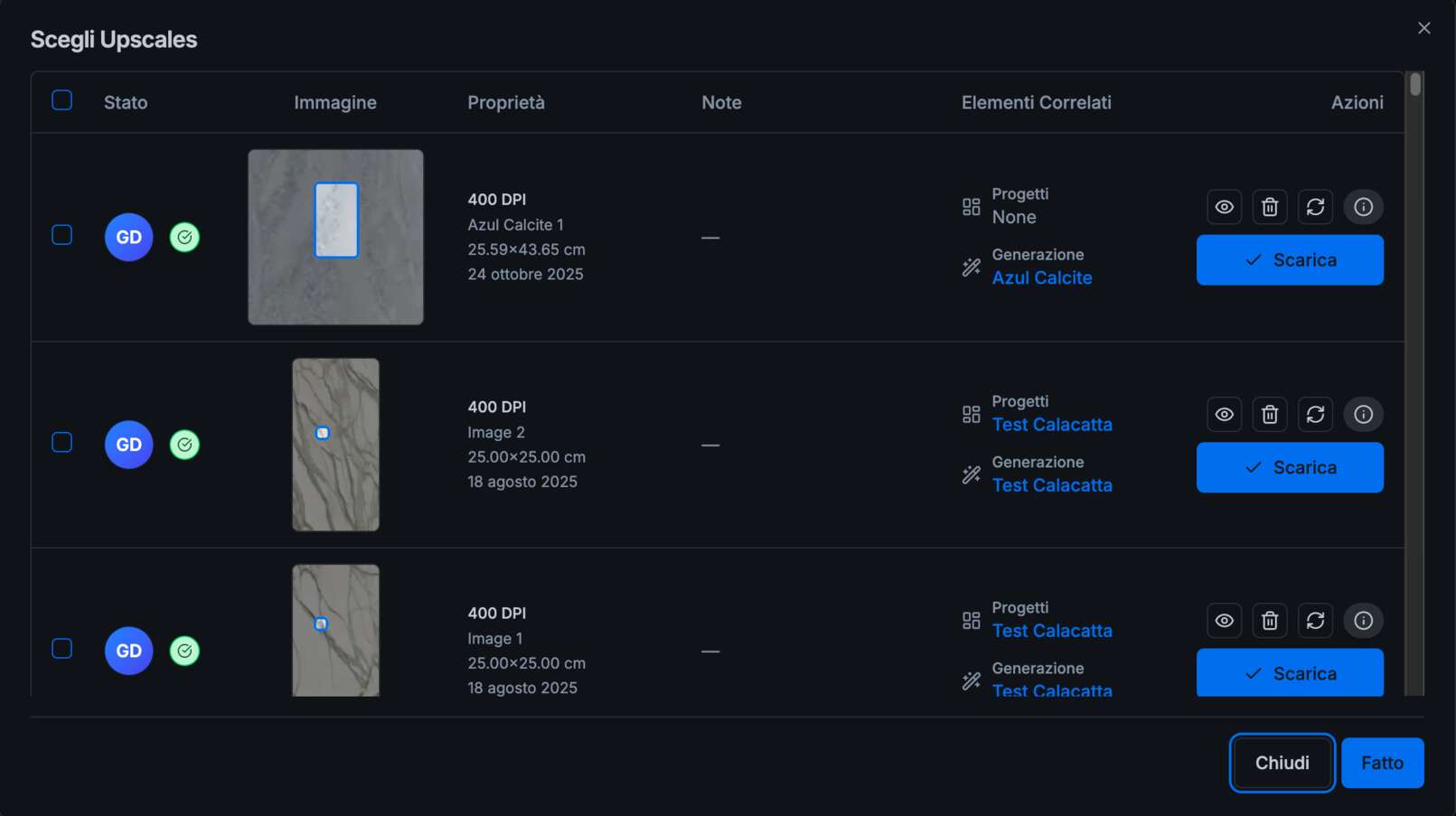
By clicking the Choose Upscales button, you can select the upscales to include in the accounting record.
The system will display upscales that have been purchased but not yet accounted for, allowing you to select one or more items.
Document Upload
You can attach one or more documents related to the issued order.
It is recommended to upload files in PDF format.