🧩 Models
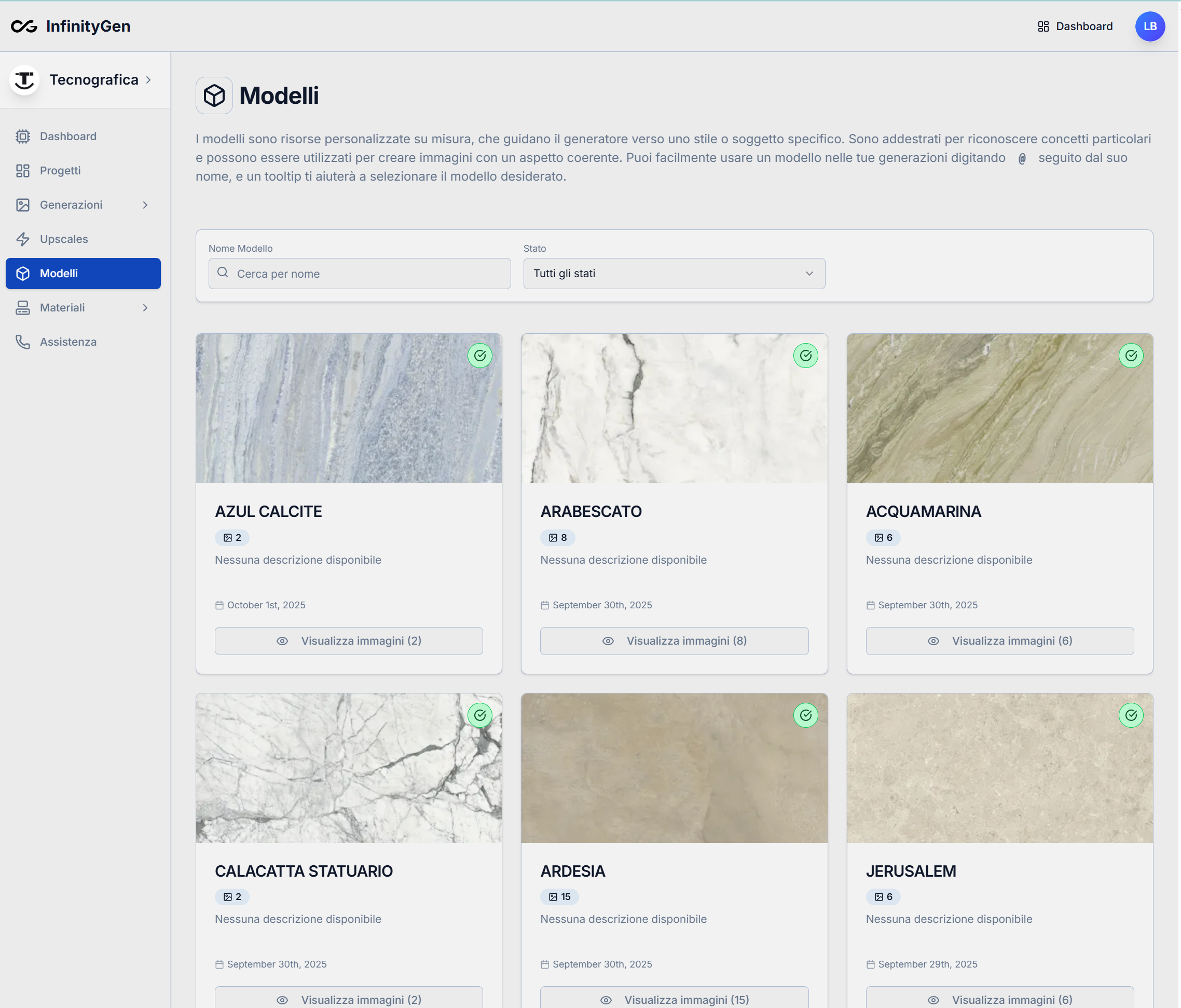
This screen shows the Models section of InfinityGen, where you can view and manage all generative models available to your organization.
What you can do on this page:
- View available models: Each model is represented by a card displaying a preview image, the name, the number of associated training images, and the creation date.
- Filter and search models: You can search for a model by name using the search bar or filter by status using the dropdown menu.
- View training images: By clicking "View images," you can see all the images used to train the selected model.
- Check model status: A green icon indicates that the model is ready to use.
- See additional details: Each card also shows the creation date and, if available, a description of the model.
This page allows you to easily select the model that best fits your generation needs, ensuring stylistic consistency and personalized results.
📌 Tip: You can quickly reference a model during image generation by typing @ followed by the model name in the prompt field, and explore various models by typing / and enabling the exploration feature.